Showing posts with label tip. Show all posts

Thursday, September 21, 2017

Ubuntu Tip Connecting To GoPro Hero4 Silver via WiFi

Ubuntu Tip Connecting To GoPro Hero4 Silver via WiFi


Any body who owns a GoPro camera will likely know you can connect to it using the GoPro app on your tablet. You will also know that GoPro has some handy video editing software that they will give you for free. All you have to do to get it is head over to their website and download it. Unless youre a Linux user. Its Mac and Windows only.

The tablet app is Android compatible. However it would not let me download files to an SD card. It seems to want to use the tablets own internal storage. And since the videos are quite large. This can be problematic.

Now youd think the easy way around this would be connecting the camera to a desktop PC and using the USB port or simply removing the SD card. Neither of these options were working out for me. USB connectivity was spotty and irritating. Sometimes the camera would show me the files. And then nothing would happen when I tried to copy them or my PC would freeze.

Im not really sure what the issue is. But GoPro Hero4 and USB transfers are just not an option on my PC.

I had similar issues with the 64GB SD card. Which actually wasnt even recognised by Ubuntu at all. Its likely my little USB adapter just cant handle it. Whatever the problem was. Ubuntu just didnt see the card at all and so couldnt mount it.

I thought I had made a horrific error in buying GoPros. I use them while commuting to work on my bicycle. So I started looking for a solution. And found a link which described how to stream live video from a GoPro using VLC. The tutorial was for the Mac. But all it needed was a WiFi connection to the GoPro camera, a web browser and VLC. Nothing Mac specific then.

So I figured if I can stream live video. Maybe I can transfer pre-recorded videos. And I was right.

Step 1: Enable the WiFi on your GoPro using the GoPro app option and NOT the RC.

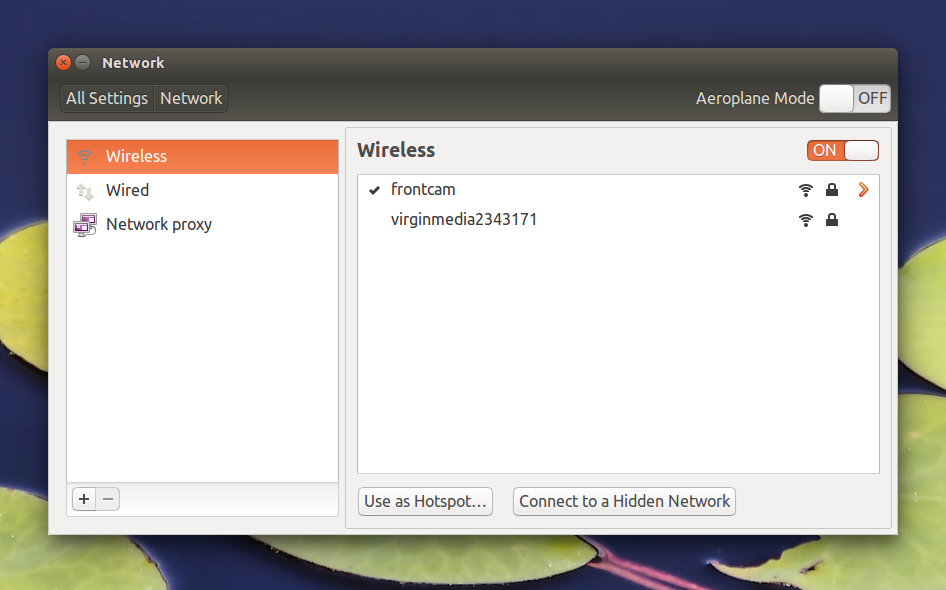
Step 2: Connect to the GoPros WiFi network as you would with any other network. It will be named whatever you named the camera when you connected to the Android app. If you havent done this yet. Do it now.


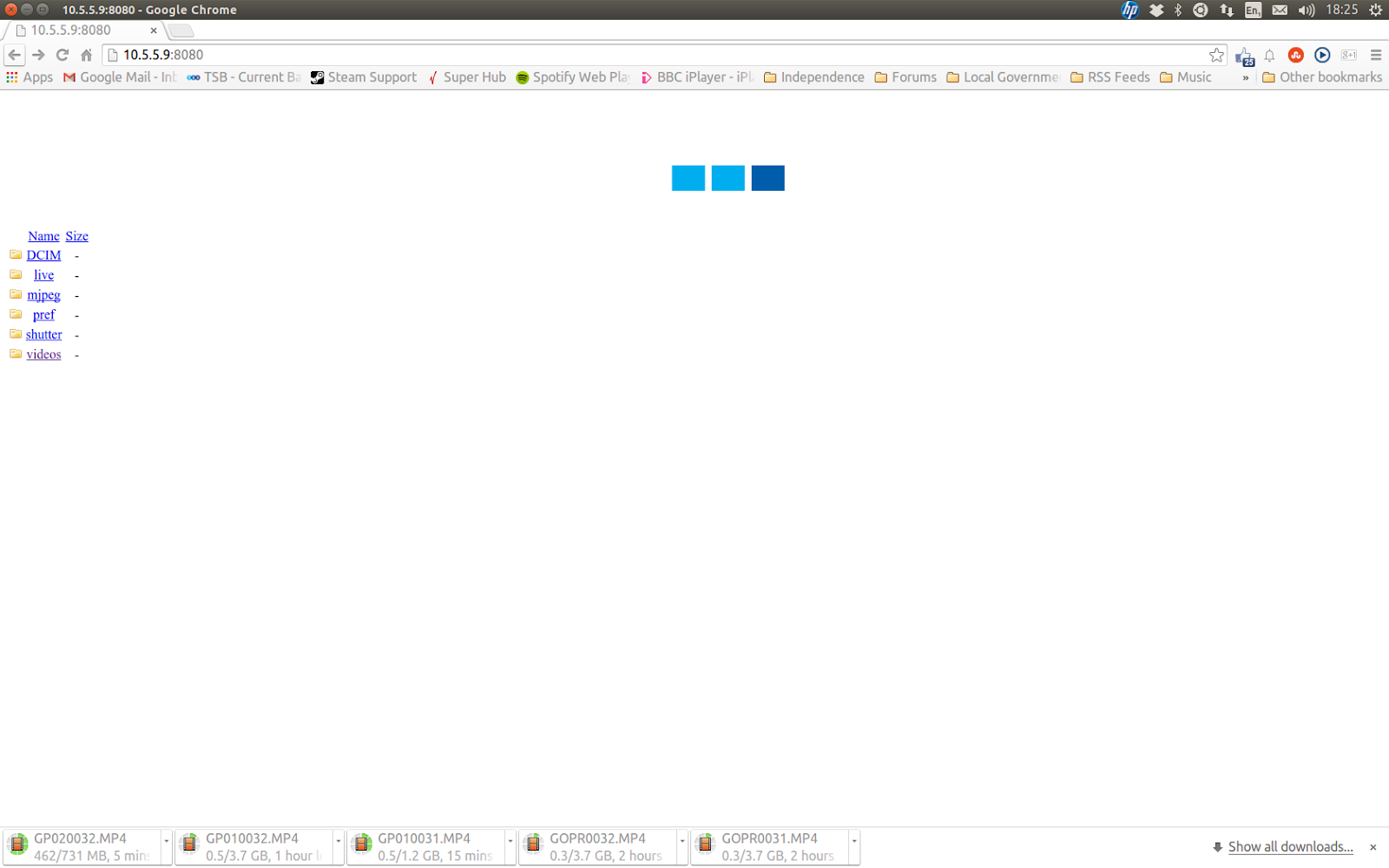
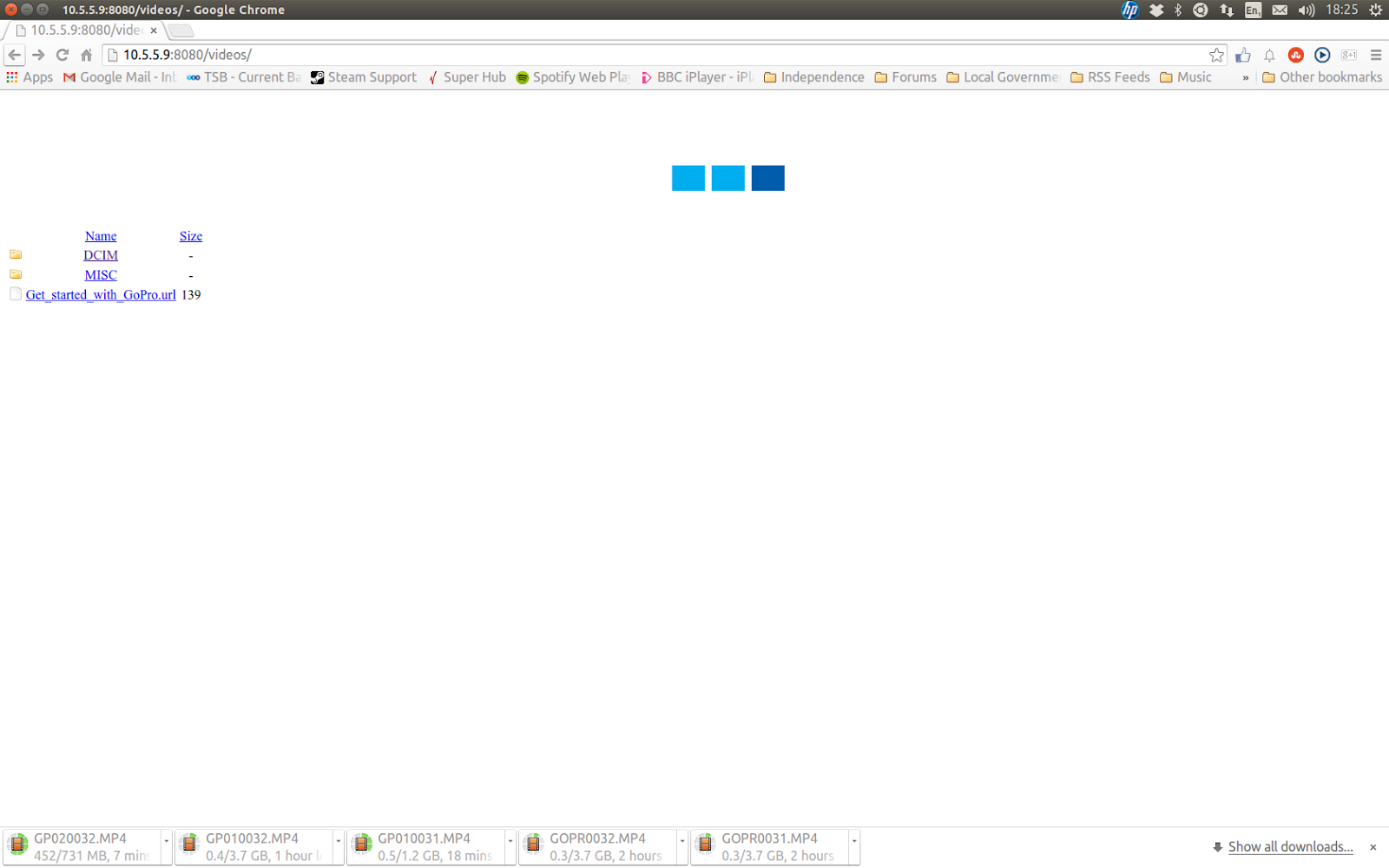
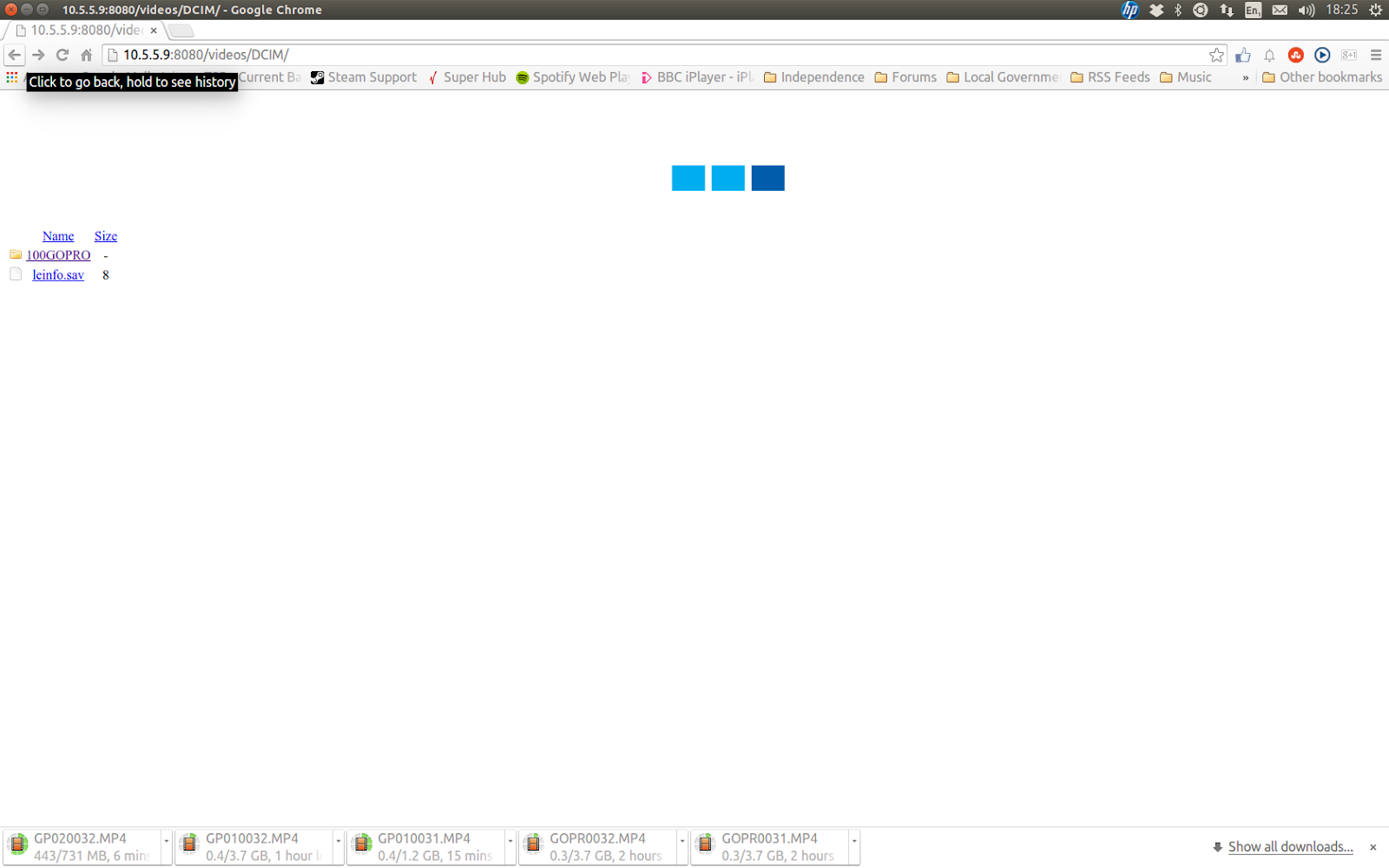
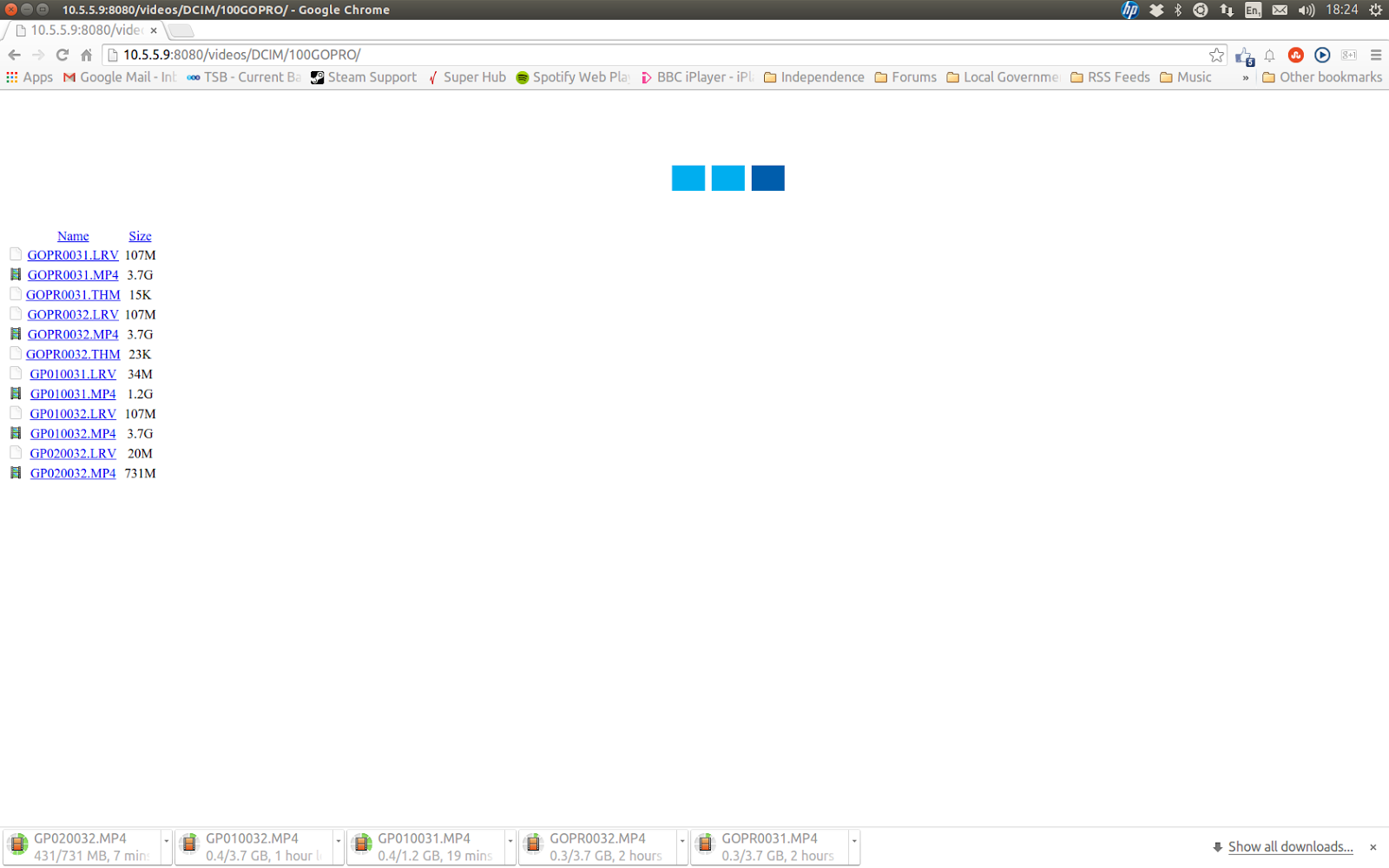
Step 3: Open your web browser and go to 10.5.5.9:8080 and this will take you to the GoPros internal web page. From here there are a number of options. Click the option that says "videos". The click "DCIM" and finally "100GOPRO".


Step 4: Click on the video file you want to download as you normally would with any other file.

And thats all there is to it.

EDIT - 07/07/2015: Some folk might prefer this method.

download file now

Read more »

Monday, September 18, 2017

Ubuntu Tip Write Your Own Software

Ubuntu Tip Write Your Own Software


Anybody who uses a PC frequently will eventually come across a problem task they would rather automate or just dont have the software tools to do. Ubuntu has a number of programming languages and tools already pre-installed or ready to install for free from the Software Centre.

For languages like Python which is pre-installed, all you need to get started is a text editor like gedit. Which is also pre-installed. And there are loads of free tutorials and advice on-line to help total beginners and experts alike.

Bad Python Programmer: Functions: #!/usr/bin/env python # Functions allow us to include code in our programs that will only run when # explicitly called and can be reused....

download file now

Read more »

Saturday, September 16, 2017

Ubuntu Tip Simple Backup Command Using CP

Ubuntu Tip Simple Backup Command Using CP


Backing up your computers hard drive is extremely important. Should the worst happen and you lose all of your important data, you need a way back. While there are many excellent utilities in the Ubuntu repositories that handle partial and full system backups. Sometimes a simpler solution is all that is needed.

Fortunately Ubuntu and Linux in general in fact comes with everything you need in the for of the very simple but also extremely powerful cp command. In case you havent figured it out yet, cp is Linux command line speak for copy. The examples below will show you how to use cp to back up your entire system.

sudo cp -r -u -x -v [source directory] [destination directory]

Example 1:
sudo cp -r -u -x -v /home/ /media/MY_USB_DRIVE

sudo: Gives temporary root privileges.

cp: Linux command line copy command.

-r: Used with cp this switch causes cp to copy directory content recursively. Meaning it will copy all files and subdirectories in the directory being copied.

-u: Used with cp this switch causes cp to only copy files that have changed or dont already exist at the destination.

-x: Used with cp this switch stops cp jumping to other file systems which it will do if it encounters hard links or symbolic links.

This switch also stops cp eating its tail if you choose to back up your entire system. See examples 2 and 3 below.

-v: Used with cp this switch cause cp to give feed back on whats happening.

Full System Backup With CP
If we wish to perform a full system backup then we might feel inclined to use a command similar to that in Example 2 below. The trouble is without the -x switch cp will also attempt to backup the backup to the backup. Basically eating its own tail in a never ending loop until all disk space is used up.

This happens because all other file systems are mounted to a location branching from the root file system. So if root is / then home is mounted to /home. Within Ubuntu all USB drives tend to be mounted to /media/a_USB_drive, etc.

However with the -x switch the command in example 2 will not be enough to back up the entire system if there are several storage devices or file systems mounted to different mount points. To get around this problem we must write a small script that will backup each file system separately. Example 3 shows a small example where the root files system / and /home are backed up separately.

Example 2:
sudo cp -r -u -v / /media/MY_USB_DRIVE

Example 3:
#!/bin/sh
#
# cp based backup script.
#
sudo cp -r -u -x -v / /media/MY_USB_DRIVE
sudo cp -r -u -x -v /home/ /media/MY_USB_DRIVE

This script can be created in any text editor like gedit or nano. After the script has been saved it must be given permission to be run as a program. Example 4 shows the command needed to change to the directory/folder where the script is stored. How to apply execute permissions and how to run the script.

Example 4:
First open a terminal window if you havent already done so and enter the following commands. The actual location of your script is where you chose to save it.

cd /home/aikiwolfie/scripts/ (press enter)
chmod a+x my_backup_script (press enter)
./my_backup_script (press enter)

And thats it. Sit back and watch the backup script do its job.

download file now

Read more »

Monday, September 4, 2017

Ubuntu Tip Adjust Navigation Hotkeys Creating Desktop Application Shortcuts

Ubuntu Tip Adjust Navigation Hotkeys Creating Desktop Application Shortcuts


I was a hopeless Windows user - in fact, I still am. I stick to Windows XP until late 2010, because that was the only option and I was too busy with my exams and life (yup, I used to have a life...!) to play with Windows 7 when it first released.

Well, my first encounter with Windows 7 was on the laptop I bought for University. 2 weeks in my freshman year, I bought that Lenovo Ideapad laptop - I have to say, that was wonderful.

I wasnt really a hotkey person until I start using Windows 7, especially the navigation ones, this is one of the few things I genuinely appreciate on works from Microsoft.

Win + D and Win + Up/Down/Left/Right to resize the focus windows has been very important to my computer usage in the last few years - and also Win + 1-9, but Ubuntu comes with that by default so there isnt really much to say about it.

However, for some reason, Canonical has decided to add ctrl to every of these hotkeys I mentioned above, so Show Desktop is ctrl + win(super) + d, and snapping windows are ctrl + win + nav.

If youre an experienced Windows user like me, then you might develop a reluctant-ness to Ubuntu for being unable to use these hotkey like we used to.

Good news is we can change that - well, in fact, in the world of Linux, almost everything can be changed!

First, go to Software Center and search for "CompizConfig Settings Manager". Download it and it would got pinned to your taskbar automatically.

Just open the app, and go to Grid, under Windows Management. Go into it and you will see a list of hotkeys you will be able to change with the app.


The ones we are looking for are the 4 at the bottom, they are: Maximize Key, Restore, Left Maximize, and Right Maximize.


Click on the Button with the current hotkey to change it, you can use the interface given to select a new hotkey, or you can choose to click Grab combination and go on and press the keys on your keyboard and they will be recorded as the new hotkey for a specific feature.

There is, however, another thing we need to do before closing the app, for some reason, Win + Down is not functioning properly just by setting the Win + Down here in the Grid menu, we will have to go back to the main menu of CompizConfig Settings Manager, choose General Options under General, then find the option "Unmaximize or Maximize Window" and change it into Win + Down as well.


After that, close the app and try to control a window with your newly-set hotkeys!

Oh, and there is still one frequently used hotkey I havent wrote about yet - the Show Desktop key.

To set this one, we dont have to use CompizConfig Settings Manager, simply to go System Settings in your dash (open by Win key and search system then you will see it.) Go to Keyboard and click the shortcut tab, select Navigation, in the list of options on the right, find the one named "Hide all normal windows", select it and press Win+D, the hotkey will then be set.


All done!

Update:

A few days after, I found that my show desktop hotkey wasnt working properly.

My situation was - everytime I use the newly-set win+D hotkey to minimize all windows, the hotkey doesnt restore all windows when pressed again.

The solution is simple - just go to the system settings, click on Appearance, then get into the Behavior tab, check Add show desktop icon to the launcher. After that, the hotkey show behave as in Windows.

Cheers!

download file now
Read more »

Ubuntu tip Turning off tooltips

Ubuntu tip Turning off tooltips


When you hover over anything in Ubuntu Yellow boxes pop-up (Tooltips) and give you information. Personally it bugs me really badly. If you are like me; turning them off is really simple.


Note: the quotation marks are not part of the names.

First right click on the "Applications" button in the top panel, then click "Edit Menus". e.g:

When the menu editor opens click "System Tools". In the right column you will see: "Configuration Editor" Tick the box next to it, and close the menu editor. e.g:

Now click on "Applications" then "System Tools" then "Configuration Editor". Once the configuration editor opens click the arrow next to "apps", then click the arrow next to "panel". This expands the menus. e.g:

Now select the "global" folder. and in the right column untick the box next to "tooltips_enabled". e.g:

There you have it. Annoying yellow boxes gone :)

download file now

Read more »

Tuesday, August 29, 2017

Ubuntu Tip Split Screen In Nautilus

Ubuntu Tip Split Screen In Nautilus


Way back in the days when I got my first IBM compatible PC running MS-DOS and Microsoft Windows 3.1 there was a feature in the Windows file manager I have really missed over the years since 3.1 became redundant. Its the split screen mode.

Well I shall miss it not a minute more. For Nautilus has just such a feature. Simply open Nautilus and press F3. Each pain can point to its own directory. Which is handy considering I connect to FTP servers using Nautilus.

download file now

Read more »

Friday, August 25, 2017

Ubuntu Tip How To Synchronise Gnote Between PCs

Ubuntu Tip How To Synchronise Gnote Between PCs


In the great Tomboy vs Gnote debate one of the trump cards Tomboy has is its ability to synchronise its database of notes with other PCs. Not that it was ever a feature that worked brilliantly. However none the less it was a feature I used and the only reason I continued using Tomboy over Gnote.

How stupid I was?

Ubuntu as many Ubuntu users will know comes with a "cloud" service called Ubuntu One. Which while isnt that great provides us with the basic inspiration for what were about to do. You see Canonical in their great wisdom decided it would be a great idea to integrate Tomboy with Ubuntu One. Fine. Excellent. If it works. It did for a time for me. Then sort of went a bit crappy. However there are more mature "cloud services" available for synchronising files between two PCs. And that incidentally is all Tomboys synchronisation feature does so far as I can see. It simply copies files that have been created or changed recently to the PC that doesnt have the new version.

You see all of the notes you create in Tomboy or Gnote are stored in individual XML formatted files. And the Linux file system has a crafty little feature called symbolic links. Combine this with a service like Ubuntu One or Dropbox and all our notes are synchronised automagically so long as we have an active web connection.

Prerequisites:
  1. Tomboy or Gnote. I recommend Gnote. Its lighter and faster than Tomboy.
  2. Ubuntu One, Dropbox or similar service. I would recommend Dropbox.
Setup:
  1. Creat a new folder for yout notes in your Ubuntu One or Dropbox folder.
  2. Copy your existing notes to the folder you just created in your Ubuntu One or Dropbox folder. Tomboy notes can be found in /home/your-user-name/.local/share/tomboy. Gnote notes can be found in /home/your-user-name/.gnote.
  3. Replace the Tomboy or Gnote folder with a symbolic link. Open a terminal window and enter the following command adjust for your own PC;
    ln -vsf Dropbox/gnote /home/your-user-name/.gnote
  4. Repeat steps 1 and 3 on the second, third, fourth, etc PC.
NOTES:
  1. Its best to have Tomboy or Gnote already setup and working before you attempt this.
  2. Its also better to avoid using hidden directories with Dropbox. They dont work very well in my experience.
  3. If youre using Tomboy but would like to switch to Gnote thats not a problem. Gnote is a native Linux implementation of Tomboy that is free of all Mono dependencies. Both applications use exactly the same data file formats and both offer almost exactly the same feature set. So all you need to do is copy the Tomboy files to your Gnote folder.

download file now

Read more »

Sunday, August 20, 2017

Ubuntu Tip How To Mount ISO Disk Images

Ubuntu Tip How To Mount ISO Disk Images


If you use .iso CD/DVD images heres how to mount them from the command line or in a terminal window.

Open a terminal window and type the following commands;
  • sudo mkdir /media/iso
  • sudo modprobe loop
  • sudo mount filename.iso /media/iso -t iso9660 -o loop
Notes:
  • mkdir creates a new directory. This directory will be used as a "mount point" by Ubuntu to allow you access to the .iso file. In reality any directory can be used. Its good practice however to use a clearly defined location. You avoid problems and keep your file system clean and tidy.
  • filename.iso is the name of the iso file you wish to mount. Substitute "filename.iso" for the name of your .iso file.
  • To unmount the file use the following command: sudo umount /media/iso or whatever you called your new mount point.

download file now

Read more »

Saturday, August 19, 2017

Ubuntu Tip GoPro Hero 4 gphoto2 USB

Ubuntu Tip GoPro Hero 4 gphoto2 USB


There are a couple of methods in Ubuntu to get your content off of a GoPro. We can connect to the GoPro over WiFi. We can download content directly from the SD cards and we can download content from the camera via USB. Just drag and drop.

Each method has is pros and cons. WiFi can drop out and its painfully slow for 4GB HD video files. Constantly removing and inserting SD cards does them no favours. And dragging and dropping is hard to automate with a script.

Finding the GoPro on the command line takes effort. I personally couldnt do it. Yet Nautilus finds the camera without any problem. And if you look at the actual address of the camera in Nautilus (ctrl+l). Things get a bit stranger still. Its not a normal directory listing. Instead we get something weird , "gphoto2://[usb:003,003]/". Which the usual command line tools wont touch.

There are a number of ways we can get around this problem. We can opt for WiFi and wget. Except WiFi is slow. Fortunately the clue we need is in the camera address. In particular the "gphoto2" part. This seems to be part of a suit of tools for nix OSs. It allows them to talk to digital cameras. And Ubuntu doesnt have the command line tools installed by default.

We can however fix this. Open a terminal and run the following command.

sudo apt-get install -y gphoto2

Before attempting to use the gphoto2 command line tool. Unmount the GoPro in Nautilus. Otherwise the gphoto2 command line tool wont be able to talk to the GoPro.

I havent actually downloaded any files with this tool yet. But I can confirm that it will talk to a GoPro Hero 4 Silver edition camera. There are a lot of switches listed in the man page Id like to read over and understand before diving in. But if you want to download files from your GoPro via the command line over USB. This seems to be the way to go.

To be continued ...

download file now

Read more »

Wednesday, August 16, 2017

Ubuntu Tip Gnome Schedule

Ubuntu Tip Gnome Schedule


Ask someone in the Linux world how do you schedule tasks to activate automatically and theyll likely start blathering about cron jobs. Now cron is a great tool if you do a lot of task scheduling. But for those of us who want something simpler there is Gnome Schedule. In Ubuntu its bizarrely not installed by default. Why not? Its an insanely useful little tool thats easy to get to grips with. Luckily installation simple.

  1. Open a terminal window.
  2. Type sudo apt-get -y install gnome-schedule and press enter.
  3. Start gnome-schedule from the Applications > System Tools menu.
Thats it. All ready to go!

download file now

Read more »

Monday, August 7, 2017

Ubuntu Tip GoPro and exFAT

Ubuntu Tip GoPro and exFAT


Previously I have described how Ubuntu users can connect to their GoPro cameras over a WiFi network. I also noted that Ubuntu didnt seem to like the 64GB SD cards. Well it seems they are formatted to the exFAT file system. Which means we can fix this problem with one simple command.

All we need to do is open a terminal with Ctrl+Alt+t and install a few packages with the following command. Enter your password when prompted.

sudo apt-get -y install exfat-utils exfat-fuse

Youre Ubuntu PC should now be able to read exFAT formatted SD cards. If it cant read them right away. Try rebooting.

download file now

Read more »

Thursday, August 3, 2017

Ubuntu Tip How To Install 32 bit debs In A 64 bit Ubuntu

Ubuntu Tip How To Install 32 bit debs In A 64 bit Ubuntu


This is a very simple tip for Linux users and in particular Ubuntu users. If youre running a 64-bit version of Ubuntu you will occasionally need to install a 32-bit application. The very awesome World of Goo for example only comes in a 32-bit package. It does however run just fine on 64-bit Ubuntu 9.04.

Simple double clicking on the 32-bit .deb package will throw up a "wrong architecture" error. The way around this is to use the "--force-architecture" switch from a terminal window. See the example below.

  • sudo dpkg -i --force-architecture Desktop/WorldOfGooSetup.1.40.deb

Before we can do that however there are a few preparations to make. We must make sure all the supporting 32-bit libraries are also installed. To do this open a terminal window and enter the following command.

  • sudo apt-get install ia32-libs

And that is really all there is to it.

download file now

Read more »

Ubuntu Tip Using Quickly To Build Applications Basic Commands

Ubuntu Tip Using Quickly To Build Applications Basic Commands


What is Quickly?
Basically its a command line based tool for building applications. So go ahead and open a terminal. Now it will be useful if youre familiar with the Python programming language. If youre not then there are tones of on-line resources to help you learn.

How to create a new application:
Type: quickly create ubuntu-application mybrowser

Quickly will create a directory with the same name as your application containing all its files.

How to edit your application:
In the applications directory type: quickly edit

How to edit the GUI:
In the applications directory type: quickly design

How to run your application:
In the applications directory type: quickly run

How to package your application:
In the applications directory type: quickly package


You might also want to watch this video. It will take you through the development of a very basic web browser application.


download file now

Read more »