Friday, September 22, 2017
Turn Any Photo Into Enscape Content In a Matter of Minutes
Turn Any Photo Into Enscape Content In a Matter of Minutes
With the newly announced partnership between Archvision and Enscape, some interesting possibilities have opened up. If you own both Archvision Dashboard and Enscape, you can rapidly create custom RPC and view it in your Enscape presentations, including in VR.
 |
| Overview of the process |
You can also read the full media release here.
Heres how to do it:
Edit your image...
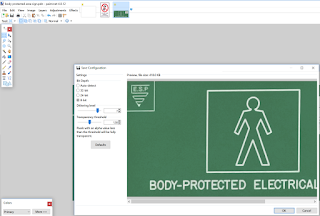
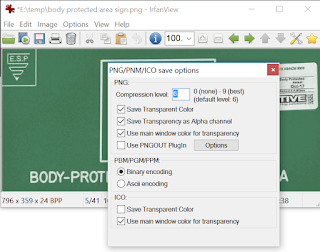
Save as PNG with Transparency (I used Irfanview here)
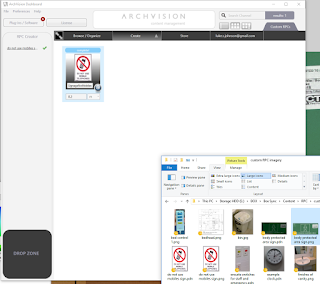
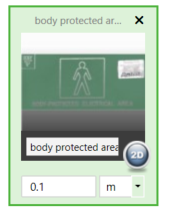

Then drag and drop to Revit,
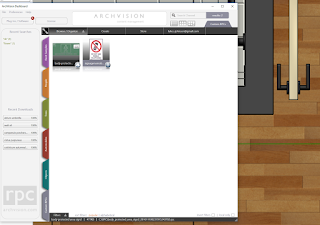
Locate it correctly,

and start Enscape...
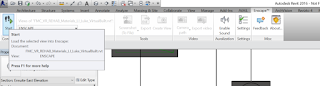
Enjoy!
download file now

Monday, September 18, 2017
Trick to make any game full screen in s60v5 mobiles
Trick to make any game full screen in s60v5 mobiles
Menu �> settings �> Application manager �> Installed apps. �> select touch game in 360�640 �> Options �> Suite setting �> On-screen keyboard �> set OFF
And now we have touch-fullscreen java games
360�384
if select Navig. keys only
menu �> settings �> Application manager �> Installed apps. �> select touch game in 360�384 �> Options �> Suite setting �> On-screen keyboard �> and set Navigation keys only
360�360
we do nothing. Setting is default. We have full virtual navigation keypad
download file now
Tuesday, September 5, 2017
Turn on autologon for any windows user in windows XP
Turn on autologon for any windows user in windows XP
By default auto login feature got disabled in windows when ever you create any other account in windows XP other than default administrator acoount.
What is AutoLogon?
When a user got logged in windows XP without entering username and password. Don�t you think this could be more convenient when logging to windows?
Note: When you turn on autologon in Windows XP becomes more convenient, but turning this setting on can pose a security risk, but still if you want to do it.
Let�s see how you turn this setting on.
Turn AutoLogon On
1. Open Start >> Run and type regedit (this will open registry editor )
2. Navigate to the following path:
HKEY_LOCAL_MACHINESOFTWAREMicrosoftWindowsNTCurrentVersionWinlogon
3. Double-click the DefaultUserName entry, and type your user name and click OK?
4. Now double-click the DefaultPassword key, type your password and click OK.
Note: If you don�t find DefaultPassword value, you will need to create the entry:
4.1. In File menu Click Edit select New, and then click String Value.
4.2 Type DefaultPassword as the value name and click Ok .
4.3 Double-click created key, and type your password.
5. Now double-click the AutoAdminLogon entry, type 1 in the Value Data box, and then click OK.
Note: If you don�t find AutoAdminLogon entry, you will need to create the entry.
5.1 In File menu Click Edit, click New, and then click String Value.
5.2 Type AutoAdminLogon as the value name and click Ok.
5.3 Double-click created key, and type 1 in the Value Data box.
6. Exit Registry and restart windows.
After restart you will be able to auto logon to windows.
download file now